
- BuildMaster
- Getting Started with BuildMaster
- Builds and Continuous Integration
- What is a "Build" in BuildMaster?
- Git and Source Control
- Git Pipelines and Workflows
- Build Scripts & Templates
- Packages & Dependencies
- Build Artifacts
- Automated Testing & Verification
- Deployment & Continuous Delivery
- What is a “Pipeline” in BuildMaster?
- CI Server (Jenkins, TeamCity, etc.) Integration
- Deployment Scripts & Templates
- Automatic Checks & Approval Gates
- Manual Deployment Steps and Tasks
- Databases
- Configuration Files
- Rollbacks
- Advanced CD Patterns
- Applications & Releases
- Connecting to your Servers with BuildMaster
- Scripting in BuildMaster
- Configuring for Your Team
- Docker/Containers
- Development Platforms
- Deployment Targets
- Tools & Service Integrations
- Reference
- BuildMaster API Endpoints & Methods
- Extending BuildMaster
- Built-in Functions & Variables
- Applications
- Builds
- Configuration Files
- Containers
- Credentials
- Databases
- DotNet
- Environments
- Executions
- Files
- General
- Jira
- JSON
- Linux
- Lists
- Maps
- Math
- Nuget
- Packages
- Pipelines
- PowerShell
- Python
- Releases
- Servers
- Strings
- Windows
- XML
- Built-in Operations
- Batch
- BuildMaster
- Configuration Files
- Databases
- DotNet
- Files
- Firewall
- General
- Apply-Template
- Attach Package
- Concatenate-Files
- Copy-Files
- Create-Directory
- Create-File
- Create-Package
- Create-ZipFile
- Delete-Files
- Download-Asset
- Download-Http
- Ensure-Directory
- Ensure-File
- Ensure-HostsEntry
- Ensure-Metadata
- Ensure-Package
- Exec
- Get-Http
- Install-Package
- OSCall
- OSExec
- Post-Http
- Push-PackageFile
- Query-Package
- Remediate-Drift
- Rename-File
- Repackage
- Replace-Text
- Send-Email
- Set-FileAttributes
- Set-Variable
- Sleep
- Transfer-Files
- Upload-Assets
- Upload-Http
- Git
- GitHub
- IIS
- Jira
- Nuget
- PowerShell
- ProGet
- Python
- Registry
- Scripting
- Servers
- Services
- Shell
- Windows
- Administration
- Installation & Upgrading
- ProGet
- Getting Started with ProGet
- Packages: Managing & Tracking
- Feeds Types & Third-Party Packages
- What is a "Feed" in ProGet?
- What is a "Connector" in ProGet?
- NuGet (.NET)
- Universal Feeds & Packages
- PowerShell
- Chocolatey (Windows/Machine)
- RubyGems (ruby)
- Open VSX Extension (vscode)
- Visual Studio Extension (.vsix)
- Maven (Java)
- npm (Node.js)
- Bower (JavaScript)
- Debian (Apt)
- Helm (Kubernetes)
- PyPI (Python)
- Conda (Python)
- RPM (Yum)
- Alpine (APK)
- CRAN (R)
- pub (Dart/Flutter)
- Cargo (Rust)
- Terraform Modules
- Conan (C++)
- Composer (PHP)
- Other Feed Types
- Asset Directories & File Storage
- Docker and Containers
- Replication & Feed Mirroring
- Software Composition Analysis (SCA)
- Security and Access Controls
- Cloud Storage
- Administration
- Installation & Upgrading
- API Methods and CLI Commands
- Otter
- Getting Started with Otter
- Orchestration & Server Automation
- Connecting to your Servers with Otter
- Collecting & Verifying Configuration
- Drift Remediation / Configuration as Code
- Scripting in Otter
- Configuring for Your Team
- Installation & Upgrading
- Administration & Maintenance
- Reference
- Otter API Reference
- OtterScript Reference
- Built-in Functions & Variables
- Executions
- Files
- General
- JSON
- Linux
- Lists
- Maps
- Math
- PowerShell
- Python
- Servers
- Strings
- XML
- Built-in Operations
- Batch
- Docker
- DotNet
- Files
- Firewall
- General
- Apply-Template
- Collect Debian Packages
- Collect RPM Packages
- Collect-InstalledPackages
- Concatenate-Files
- Copy-Files
- Create-Directory
- Create-File
- Create-Package
- Create-ZipFile
- Delete-Files
- Download-Asset
- Download-Http
- Ensure-Directory
- Ensure-File
- Ensure-HostsEntry
- Ensure-Metadata
- Ensure-Package
- Exec
- Execute Python Script
- Get-Http
- Install-Package
- OSCall
- OSExec
- Post-Http
- Push-PackageFile
- PYCall
- PYEnsure
- Query-Package
- Remediate-Drift
- Rename-File
- Repackage
- Replace-Text
- Send-Email
- Set-FileAttributes
- Set-Variable
- SHEnsure
- Sleep
- Transfer-Files
- Upload-Assets
- Upload-Http
- IIS
- Otter
- PowerShell
- ProGet
- Python
- Registry
- Servers
- Services
- Shell
- Windows
- Installation & Maintenance
- Windows (Inedo Hub)
- Linux (Docker)
- High Availability & Load Balancing
- User Directories & Domains (LDAP)
- Logging & Analytics
- SAML Authentication
- When to Upgrade your Inedo Product
- Managing Agents and Servers
- Backing Up & Restoring
- Installation Configuration Files
- PostgreSQL & Inedo Products
- SQL Server & Inedo Products
- Inedo Agent
- What is the Inedo Agent?
- Installation & Upgrading
- Downloads & Release Notes
- Maintenance & Configuration
- Internal Architecture
- MyInedo
- OtterScript (Execution Engine)
- Reference
- OtterScript
- Inedo Execution Engine
- Romp (Discontinued)
- Using Romp
- Installing, Configuring, and Maintaining
- Romp CLI Reference
- Package Layout
- Downloads & Source Code
- Extensibility
- Inedo SDK
HOWTO: Create and Upload Terraform Modules to a Private Registry in ProGet

Using ProGet, you can easily set up a private registry to create and upload your internal terraform modules.
This guide will show you how to set up a "Feed" in ProGet as a private terraform module registry. We will also walk you through packaging your modules and uploading them to this feed.
Step 1: Create a New Feed
We'll start by creating a Terraform feed that we will use to host our internal terraform packages.
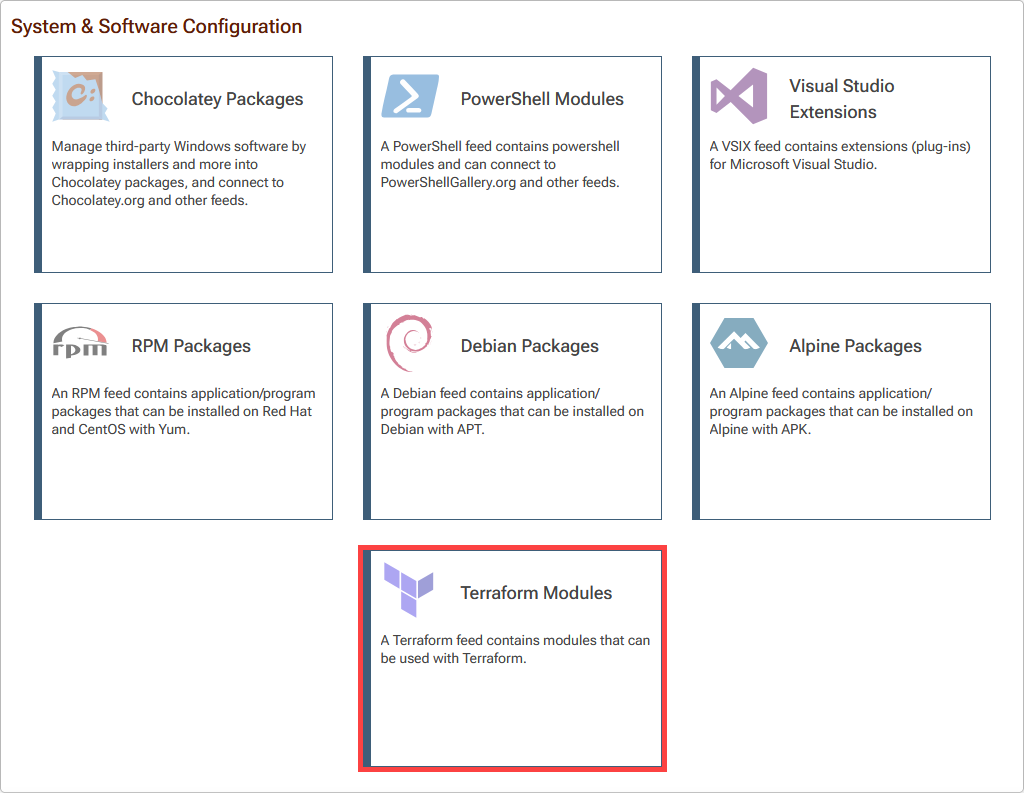
Navigate to "Feeds" and select "Create New Feed". Then select "Terraform Modules", listed under "System & Software Configuration".
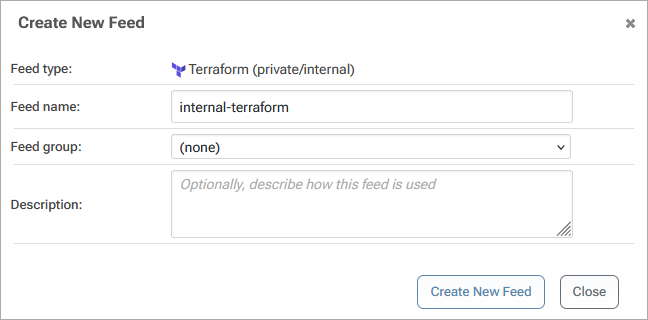
Then select "Private/Internal Terraform Modules" and name the feed, which we will call internal-terraform. Then select "Create New Feed"
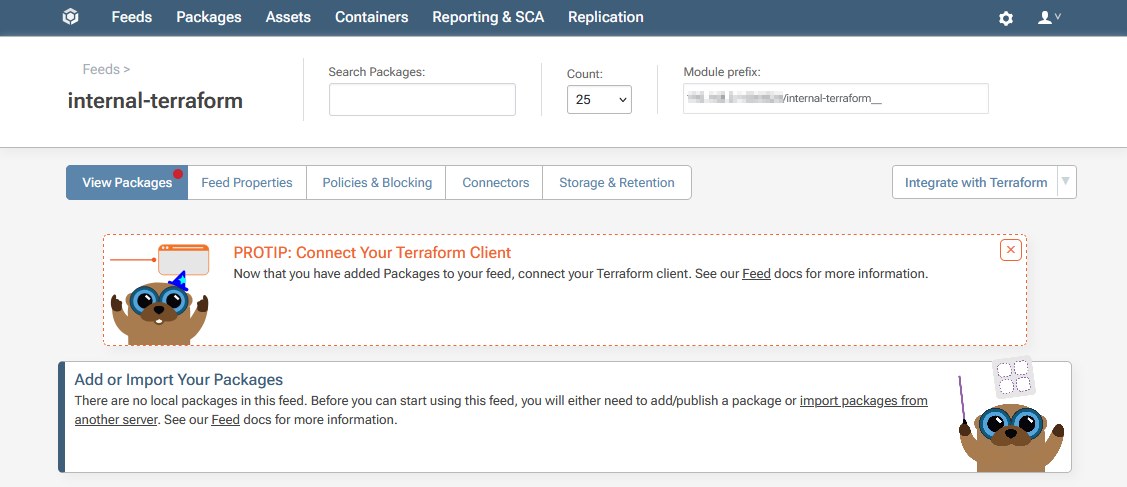
You will then be redirected to your new internal-terraform feed, currently empty.
Step 2: Create a Metadata File
To upload your module to your internal-terraform feed, you'll need to package it. You can read more about what goes into a module package on the Terraform Modules page. To package a module you'll first need to create a Universal Package JSON metadata file. This file, named upack.json, provides essential information about your module. The format includes:
{
  "group": "«company-name»",
  "name": "«module-name»",
  "version": "«version»"
}
A upack.json for the my-company/my-module/aws module might look like this:
{
"group": "my-company",
"name": "my-module.aws",
"version": "4.20.0"
}
You can also use additional Universal Package properties like summary and description to provide additional metadata for users in ProGet.
Step 3: Package your Module
Once you have created the metadata file for your module, you'll need to package it. You can do this through ProGet's UI but we recommend using the pgutil command line tool. This needs a bit of minor configuration before use such as setting up your ProGet instance and API key as a source by running:
$ pgutil sources add --name=Default --url=«proget-url» --api-key=«api-key»
Adding the ProGet instance https://proget.corp.local/ with the API Key abc12345 you would enter:
$ pgutil sources add --name=Default --url=https://proget.corp.local/ --api-key=abc12345
Now package your module using the upack create command:
$ pgutil upack create --source-directory=«path-to-module» --manifest=«path-to-upack»
Packaging and uploading the module my-module stored at /home/user/my-company/my-module/aws to your internal-terraform feed you would enter:
$ pgutil upack create --source-directory=/home/user/my-company/my-module/aws --manifest=/home/user/my-company/my-module/aws/upack.json
Step 4: Upload your Packaged Module
Once packaged, you cam use pgutil to upload your module to your internal-terraform feed using the packages upload command:
pgutil packages upload --feed=internal-terraform --input-file=«path-to-module»
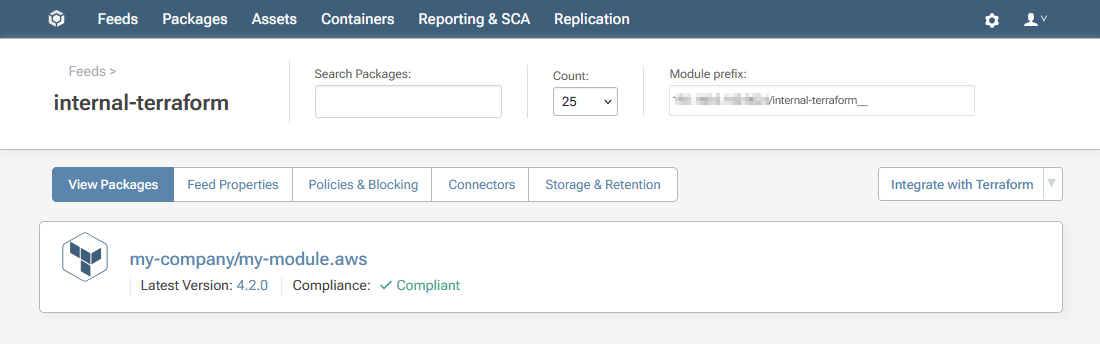
Your module will then be uploaded to the internal-terraform feed.
Step 5: Edit your .tf File
Once you've uploaded a package to your feed, you can add the module to your Terraform configuration by adding this block in your .tf file (e.g., main.tf):
module "«module-name»" {
  source  = "«proget-host-name»/«feed-name»__«namespace»/«module-name»/«provider»"
  version = "«version»"
}
A my-company/my-module module that uses aws might look like this:
module "example_module" {
source = "proget.corp/internal-terraform__my-company/my-module/aws"
version = "4.20.0"
}
Once you add this to your .tf file, you can add in additional variables and then run terraform init.